
How to Include / Add Custom JavaScript into your WordPress Site
You might need to insert custom Javascript code to WordPress header of Footer when developing your own plugin.There are couple of ways to do this. Adding custom JavaScript to your WordPress site allows you to extend its functionality, whether you're adding a tracking pixel, creating a custom slider,...

Amila Rajapaksha is the CEO and Managing Director of Mobiz International (Pvt) Ltd, a web design and development company based in Gampaha, Sri Lanka. Since 2010 he has helped businesses across Sri Lanka and overseas launch fast, search-friendly websites and online stores — working hands-on with WordPress, Magento and custom Laravel builds, and the SEO that makes them rank.
You might need to insert custom Javascript code to WordPress header of Footer when developing your own plugin.
There are couple of ways to do this.
Adding custom JavaScript to your WordPress site allows you to extend its functionality, whether you're adding a tracking pixel, creating a custom slider, or building interactive UI elements. However, WordPress has a specific way of handling scripts to ensure compatibility between themes and plugins.
Here is a guide on the three most common ways to add custom JavaScript safely.
1. Using the wp_enqueue_script() Function (Recommended)
The "WordPress way" to add scripts is by using the built-in wp_enqueue_script() function. This method prevents script conflicts and ensures that dependencies (like jQuery) are loaded before your custom code.
Step-by-Step Implementation:
-
Create your JS file: Save your code as
custom-script.jsinside your theme's/js/folder. -
Edit
functions.php: Open your theme’sfunctions.phpfile and add the following code:
PHP
function my_theme_enqueue_scripts() {
    wp_enqueue_script(
        'my-custom-js', // Unique handle
        get_template_directory_uri() . '/js/custom-script.js', // Path to file
        array('jquery'), // Dependencies (e.g., if you use jQuery)
        '1.0.0', // Version number
        true // Load in footer (true) or header (false)
    );
}
add_action('wp_enqueue_scripts', 'my_theme_enqueue_scripts');
Pro Tip: Always set the final parameter to
true. Loading scripts in the footer improves site speed and prevents "render-blocking" issues.
2. Using a Plugin (Easiest Method)
If you are not comfortable editing theme files, or if you want your JavaScript to remain active even if you change themes, using a plugin is the best choice.
Popular Plugins:
-
WPCode (formerly Insert Headers and Footers): A lightweight interface to paste code into the
<head>or before the</body>tag. -
Simple Custom CSS and JS: Provides a full code editor with syntax highlighting.
-
Code Snippets: Allows you to manage JS, CSS, and PHP snippets from a single dashboard.
When to use this:
-
Adding Google Analytics or Facebook Pixel code.
-
Quickly testing a small script.
-
When you don't want to create a child theme.
3. Adding Script to a Specific Page via Shortcode
Sometimes you only need a script to run on a single landing page rather than across the entire site. You can create a custom shortcode in your functions.php to wrap your script.
PHP
function my_page_specific_script() {
    ?>
    <script type="text/javascript">
        console.log("This only runs where the shortcode is placed!");
        // Your custom JS here
    </script>
    <?php
}
add_shortcode('custom_js', 'my_page_specific_script');
After adding this code, simply type [custom_js] into the WordPress editor (Gutenberg or Classic) on the specific page you want the script to execute.
Summary Comparison Table
| Method | Best For | Technical Level | Risk |
| Enqueue Script | Theme development & performance | Intermediate | Low (Safest) |
| Plugins | Quick fixes & tracking pixels | Beginner | Low |
| Shortcodes | Page-specific functionality | Intermediate | Medium |
| Hardcoding in Header.php | Never Recommended | Beginner | High (Conflicts) |
Important Best Practices
-
Use a Child Theme: If you edit
functions.phpin a parent theme, your changes will be erased when the theme updates. Always use a child theme. -
Check for jQuery "No-Conflict" Mode: WordPress runs jQuery in no-conflict mode. Instead of using the
$sign, usejQueryor wrap your code in a wrapper:JavaScript
jQuery(document).ready(function($) {
    // Now you can use $ safely inside here
    $('body').hide().fadeIn();
});
Clear Cache: If you don't see your changes immediately, clear your WordPress caching plugin (WP Rocket, LiteSpeed, etc.) and your browser cache.
Would you like me to help you write a specific JavaScript function for your WordPress site, such as a popup or a form validator?
Related Articles
 WordPress 7 min read
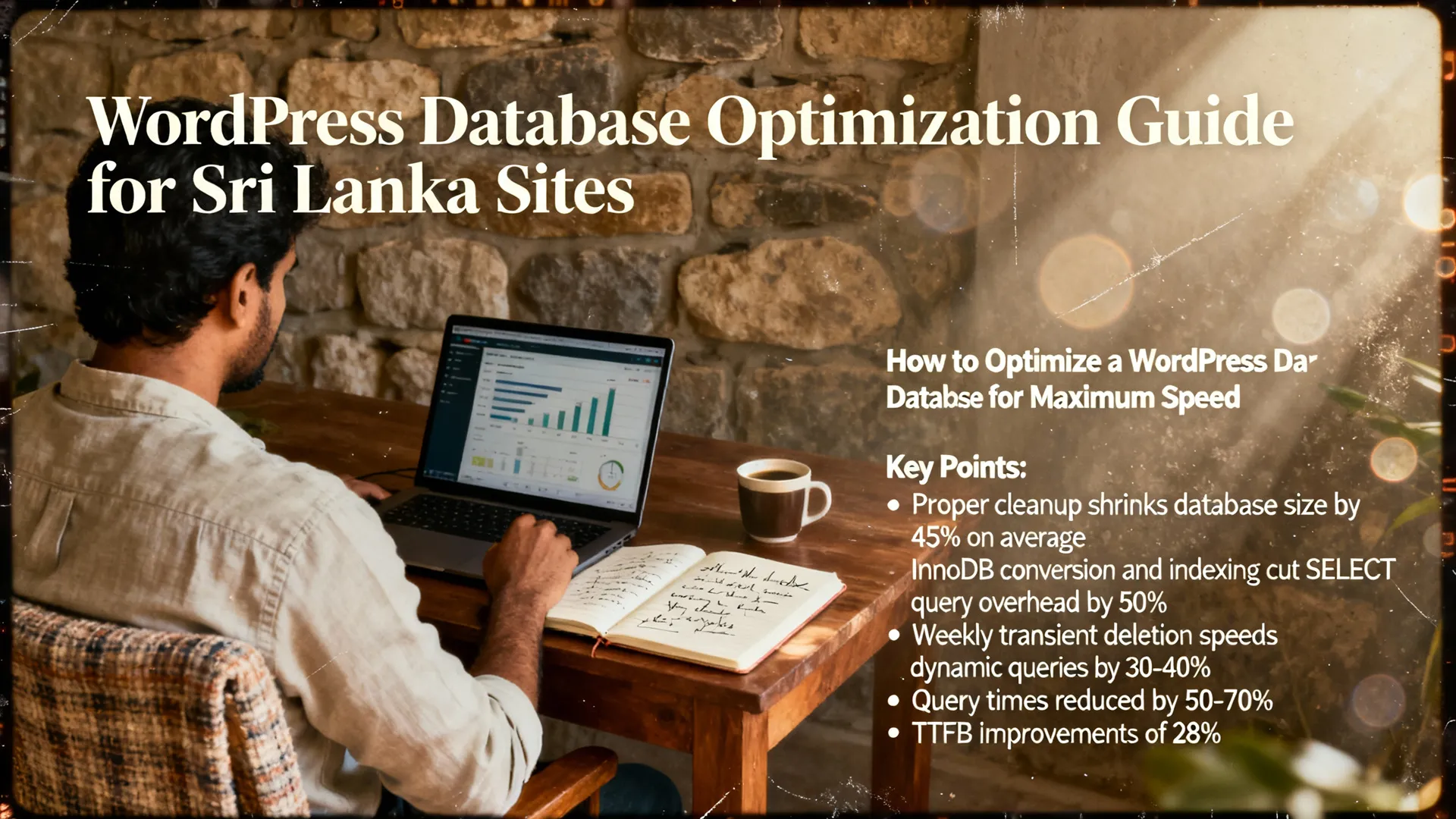
WordPress Database Optimization Guide
As a WordPress developer in Sri Lanka, I've seen firsthand how a bloated database kills site performance. Recent data shows that unoptimized WordPress databases increase query times by up to 70%, directly slowing page loads and hurting rankings.[1...
Oct 01, 2026 39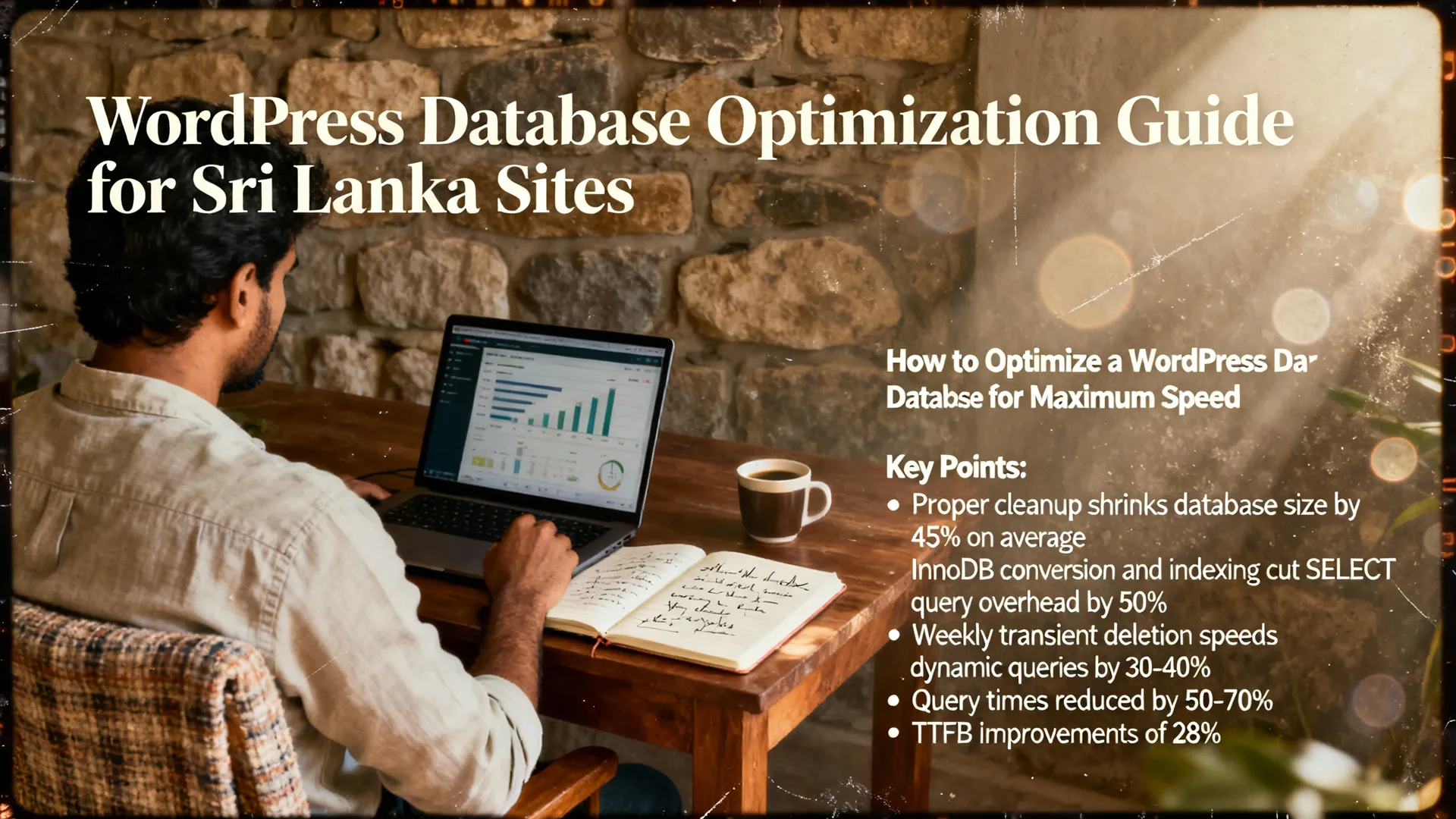 WordPress 7 min read
WordPress DB Optimization Guide 2026: Boost Speed with Proven Techniques
As a WordPress developer in Sri Lanka, I've seen firsthand how a bloated database kills site performance. Recent data shows that unoptimized WordPress databases increase query times by up to 70%, directly slowing page loads and hurting rankings.Whether you're running a simple blog or a high-t...
Oct 01, 2026 46 WordPress 12 min read
WordPress Multisite vs Single Site Setup
Learn which WordPress setup is right for your business
Jan 29, 2026 349 WordPress 12 min read
Custom Post Types in WordPress: Expanding Content Capabilities Beyond Posts & Pages
Expand content capabilities beyond posts and pages
Jan 29, 2026 332MMobizDigital agency · since 2010Mobiz Company Profile
Our services, portfolio and how we work — in one PDF. Download it now, or have a copy sent to your inbox.
View / Download PDFor email me a copyWe’ll only use your email to send the profile and may follow up once. No spam.